- NOExtra attempt, to start over from scratch?
- YESAdditional time beyond the time limit?
- NODid the student already start the quiz?
- YESOutside the scheduled “Available From” and “Until” times?
Your answer
Extra time while the quiz is outside its scheduled window
Action steps (recommended)
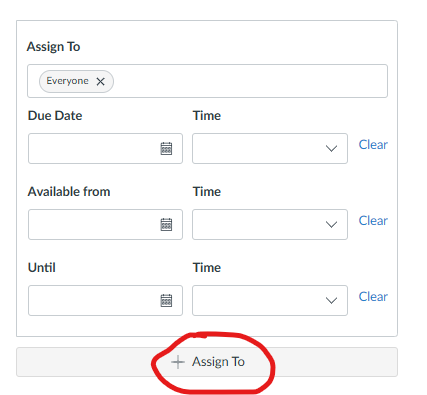
- Edit the Quiz.
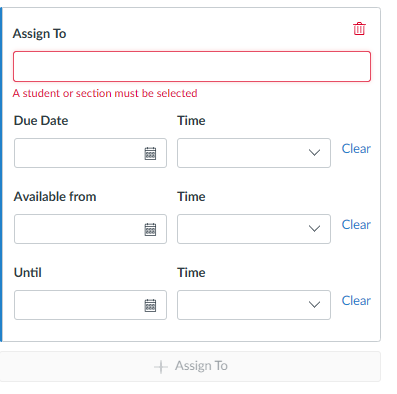
- “Assign To” the individual student with specific Due Date, Available From, and Until times.
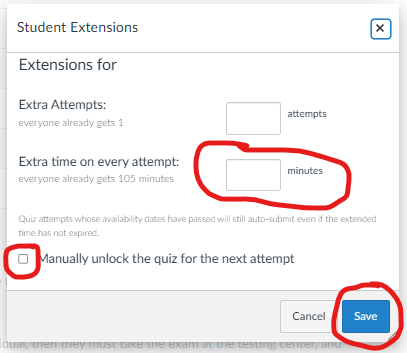
- Click “Moderate This Quiz”.
- Click “Student Extensions” (pencil icon).
- Add extra time on every attempt.
- Click “Save”.
Alternate action steps
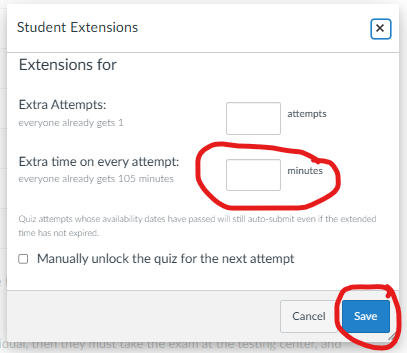
- Click “Moderate This Quiz”.
- Click “Student Extensions” (pencil icon).
- Add extra time on every attempt.
- Check “Manually unlock the quiz for the next attempt”.
- Click “Save”.
The student now has immediate access to the quiz. Canvas will flag their submission as late.
Questions about this tool? Email samberg@gsb.columbia.edu.