- YESExtra attempt, to start over from scratch?
- NOAccess the extra attempt immediately?
- NOAdditional time beyond the time limit?
Your answer
Scheduled extra attempt, no extra time
Action steps
- Edit the Quiz.
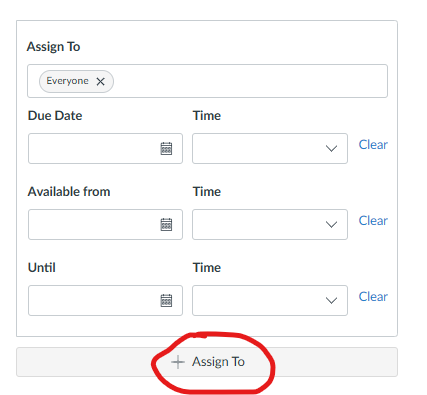
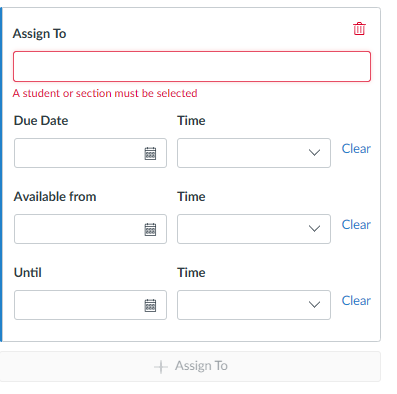
- “Assign To” the individual student with specific Due Date, Available From, and Until times.
- Click “Moderate This Quiz”.
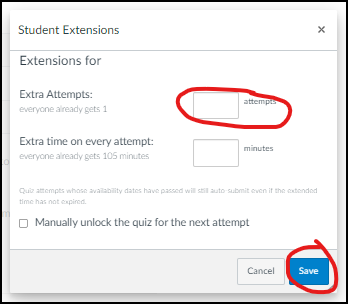
- Click “Student Extensions” (pencil icon).
- Add the number of extra attempts.
- Click “Save”.
That’s it! You’re done!
Questions about this tool? Email samberg@gsb.columbia.edu.