- NOExtra attempt, to start over from scratch?
- YESAdditional time beyond the time limit?
- YESDid the student already start the quiz?
- NOIs the attempt currently in progress?
Your answer
The student started the quiz and it is now closed
Action steps (recommended)
Since the student started the quiz and it’s now closed:
- Edit the Quiz.
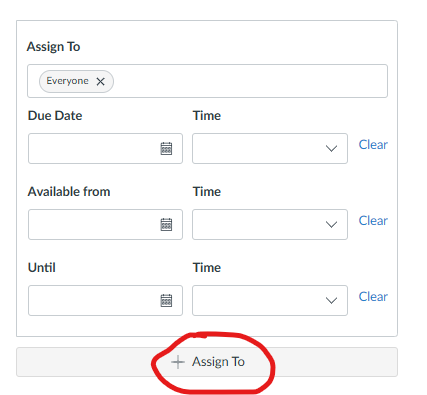
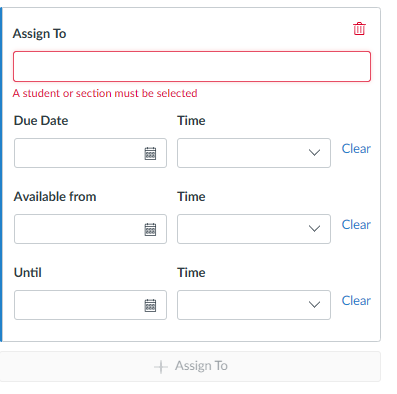
- “Assign To” the individual student with specific Due Date, Available From, and Until times.
- Click “Moderate This Quiz”.
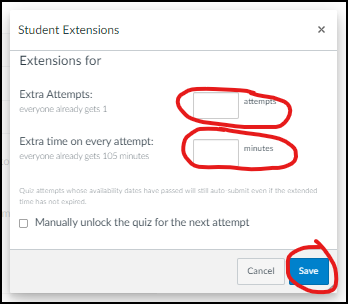
- Click “Student Extensions” (pencil icon).
- Add an extra attempt.
- Add extra time on every attempt (applies only to the second attempt).
This means the student starts over from scratch with the full time limit plus the extra time.
Alternate action steps
If you want the student to answer only the questions unanswered in the first attempt, without the full time limit, instruct them to answer only those questions and let them know how much time they have. Later you can manually grade both submissions (1st and 2nd).
- Click “Moderate This Quiz”.
- Click “Student Extensions” (pencil icon).
- Add an extra attempt.
- “Assign To” the student with a specific “Until” time so the quiz closes automatically at that time. Or manually end the quiz early for the student by doing the following:
- Click “Moderate This Quiz”.
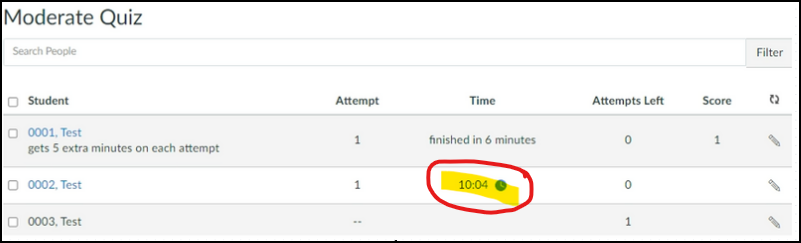
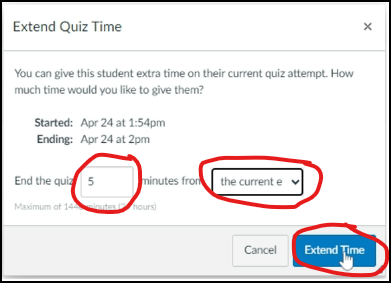
- Click the blue clock icon in the column labeled “Time”.
- In the “Extend Quiz Time” window, End the quiz [##] minutes from now.
- Click “Extend Time” to save your changes.
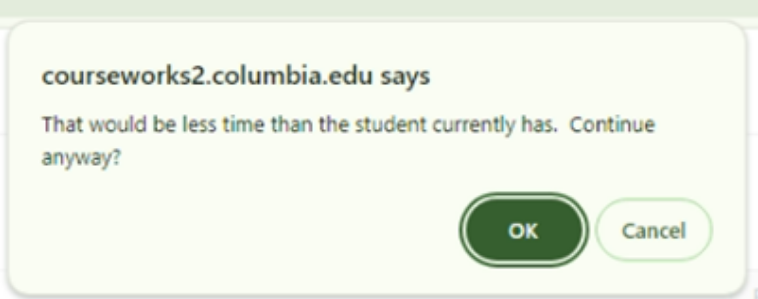
- Click “OK” if this message appears: “That would be less time than the student currently has. Continue anyway?”
Questions about this tool? Email samberg@gsb.columbia.edu.